
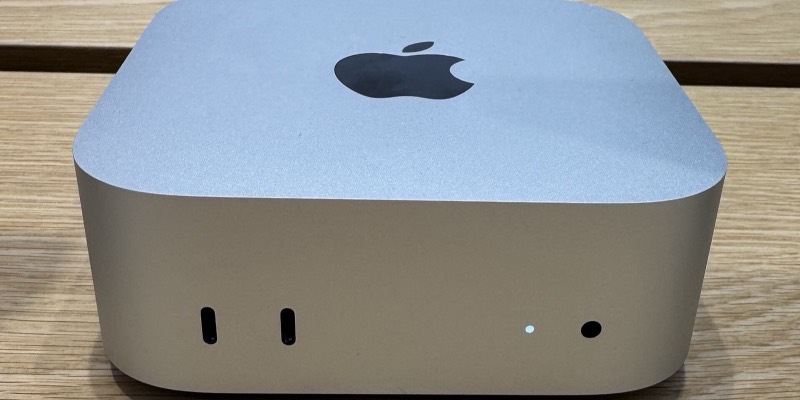
The 2024 M4 Mac mini. The new M6 and M5 Pro models went on sale on September 22, 2026. Image: Seasider53 / Wikimedia Commons, CC BY 4.0
You don’t need a subscription or a data center to run a capable AI model. A Mac mini on your desk can run open-weight models like Qwen, Gemma and OpenAI’s gpt-oss entirely offline: no account, no usage limits, and nothing you type leaves your machine. With Apple’s new M6 and M5 Pro Mac minis going on sale yesterday, it’s a good moment to try it. Here’s how to get started, whichever Mac mini you have.
Why run AI locally?
- Privacy: your prompts and documents stay on your Mac.
- No usage limits or monthly bill: once a model is downloaded, it’s free to use as much as you like.
- Works offline: on a plane, on bad Wi-Fi, or when a cloud service is down.
The trade-off: the models a Mac mini can run are smaller than the frontier models from OpenAI, Anthropic and Google. They’re great for writing help, summarising, coding assistance and quick questions, but don’t expect GPT-6 or Claude Opus 5.5.
Why Macs are good at this
Apple silicon Macs use unified memory, shared between the CPU and GPU. That means a Mac mini with 32GB of memory can give most of it to an AI model, which on a typical PC would need an expensive graphics card. The single most important spec for local AI is therefore how much memory your Mac has, followed by memory bandwidth, which decides how fast answers appear.
What can your Mac mini run?
Models are usually downloaded “quantized” (compressed, typically to 4-bit), which shrinks them to roughly a quarter of their full size with little loss in quality. As a rule of thumb, a 7–8 billion parameter model needs around 4–8GB of memory, and you should leave several gigabytes free for macOS and your apps.
- 16GB: small models of about 3–8 billion parameters, such as Qwen3 8B, Gemma 3 4B or Llama 3.2. OpenAI’s gpt-oss-20b can squeeze in, but it’s tight.
- 24–32GB: the sweet spot. Comfortably runs gpt-oss-20b, Qwen3 14B and Gemma 3 12B.
- 48–64GB: bigger models in the 27–32 billion range, such as Qwen3 32B or Gemma 3 27B, which are noticeably smarter.
Model recommendations are based on September 2026 open-model rankings and PopularAI’s Mac mini guide.
Option 1: LM Studio (easiest, no Terminal)
If you just want a ChatGPT-style app, start here.
- Download LM Studio from lmstudio.ai and drag it to your Applications folder.
- Open it, go to the search (Discover) tab and look for a model that fits your memory, for example “Qwen3 8B” on a 16GB Mac.
- Pick a 4-bit version. On a Mac, choose the MLX version where one is offered: it’s built specifically for Apple silicon.
- Once it downloads, open the chat tab, load the model and start typing.
Option 2: Ollama (best if you want to plug it into other apps)
Ollama runs models in the background and lets other apps, from coding tools to chat front ends, talk to them. It’s mostly used from the Terminal, but it only takes a couple of commands.
- Download Ollama from ollama.com/download and move it to Applications, or install it with Homebrew:
brew install ollama - Open Terminal and run a model. The first time, this downloads it:
ollama run qwen3:8b - Type your question at the prompt. Type
/byeto exit.
A few other useful commands:
ollama list      # models you've downloaded
ollama ps        # what's running, and whether it's using the GPU
ollama rm qwen3:8b   # delete a model to free up space
Try swapping in gemma3:12b or gpt-oss:20b if you have 24GB or more. Ollama has been getting faster on Macs, too: since version 0.19 it can run on Apple’s own MLX framework, which the company says processes prompts about 1.6 times faster and nearly doubles response speed, MacRumors reports. That engine initially required at least 32GB of memory.
Option 3: MLX (for developers who want maximum speed)
MLX is Apple’s own machine learning framework, and running it directly gives you the most control. If you’re comfortable with Python:
python3 -m venv .venv
source .venv/bin/activate
pip install mlx-lm
mlx_lm.chat
Most people will get the same benefits more easily through LM Studio’s MLX models or Ollama.
Tips for a smoother experience
- Start small. A fast 8B model you actually use beats a 32B model that makes your Mac crawl.
- Keep conversations short. Long chats and huge documents use more memory and slow things down.
- Close heavy apps such as browsers with dozens of tabs before loading a big model.
- Watch your storage. Each model is a multi-gigabyte download, and a 256GB Mac mini fills up quickly.
- Check the licence if you’re using a model for business. Qwen3 and gpt-oss are Apache 2.0; Gemma and Llama have their own terms.
Shopping for a Mac mini to run AI?
Apple’s new Mac minis went on sale on September 22, MacRumors reports:
- M6 Mac mini: from $899 with 16GB of memory, configurable up to 32GB, with 170GB/s memory bandwidth. Apple claims up to 4x faster AI performance than the M4 model.
- M5 Pro Mac mini: from $1,699 with 24GB, up to 64GB, and 307GB/s of memory bandwidth.
For local AI, memory matters more than anything else, and you can’t upgrade it later. If AI is a big reason you’re buying, we’d skip the base 16GB model: an M6 with 32GB is the sensible starting point, and the M5 Pro with 48GB or 64GB is the one to get if you want to run the bigger, smarter models. Already own an M4 Mac mini? It’s perfectly capable for 8B-class models, so try it before you upgrade.
Sources: MacRumors, PopularAI, DEV Community, Dreaming Press, Ollama

.jpg)