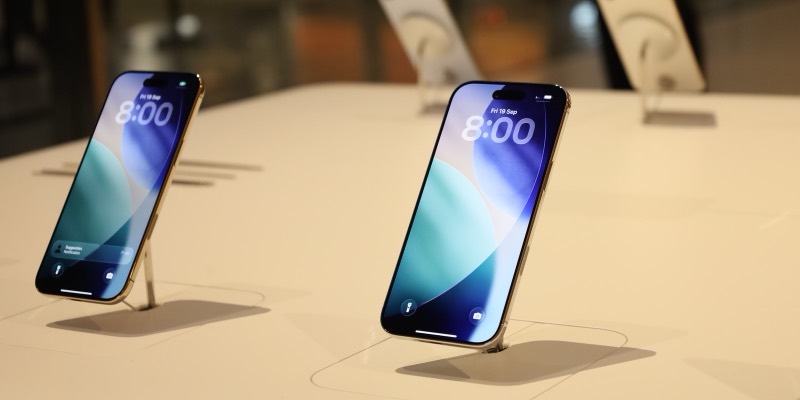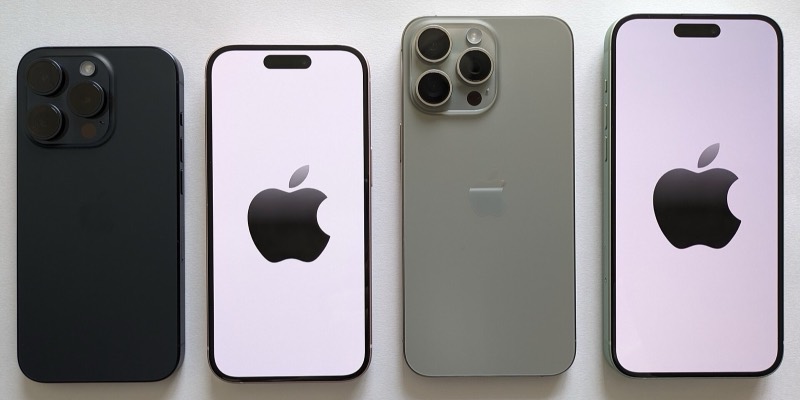

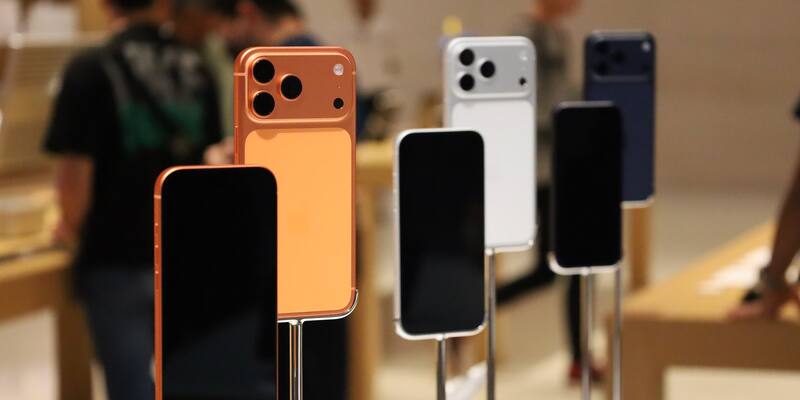
iPhone 17 Pro models on display at the iPhone 17 launch at Apple The Exchange TRX in Kuala Lumpur, Malaysia, in September 2025 (illustrative). Image: Ahmad Ali Karim / Wikimedia Commons, CC0, cropped
There is no single switch to turn off Apple Intelligence any more: iOS 27 dropped the button iOS 26 had, so you now switch off Siri AI, summaries and the other AI features one by one, or rein them in with Screen Time. Apple’s iOS 27 user guide lists every setting. Here is each one for iPhone, iPad and Mac.
Last checked: November 10, 2026, against Apple’s iOS 27, iPadOS 27 and macOS 27 user guides.
Why you can’t turn off Apple Intelligence in iOS 27
Until iOS 26 it took one tap. Apple’s iOS 26 guide says: “Go to the Settings app, tap Apple Intelligence & Siri, then tap the button next to Apple Intelligence.” That button is gone. Apple now describes the next generation of Apple Intelligence as “integrated deeply into the OS”, and its support page says it is “automatically available on eligible devices as part of the operating system” once you update.
The iOS 27 page that replaced the old instructions is called “Turn off and restrict access to Apple Intelligence features”, and it works feature by feature. It applies to the iPhones that run Apple Intelligence: iPhone 15 Pro and 15 Pro Max, every iPhone 16 model and later, iPhone Air and iPhone Duo. On an older iPhone there is nothing to switch off.
The quickest way: Screen Time and Siri Classic
The closest thing to the old switch is in Screen Time, which most people know as parental controls but which you can set for yourself. Apple’s Screen Time guide gives these steps:
- Open Settings and tap Screen Time.
- Tap Content & Privacy Restrictions and turn the restrictions on if they are off.
- Tap Siri, then choose Siri (Classic Version) to keep Siri without AI, or Don’t Allow Siri to block Siri completely.
- If you keep Siri AI, you can instead block single capabilities, such as Image Creation, Sensitive Topics or Explicit Language.
Apple notes that “the settings that appear here may vary depending on your Siri version”. Its guide doesn’t say this switches off summaries or the other features below, so turn those off as well. A Screen Time passcode stops anyone else turning the restrictions back off.
How to turn off Siri AI but keep Siri
Siri AI (Beta) is the biggest Apple Intelligence feature in iOS 27, and Apple splits it from the older assistant, now called Siri Classic. To turn Siri AI off:
- Open Settings and tap Siri.
- Scroll down, tap Turn Off Siri, then tap Turn Off Siri again to confirm.
- To keep a basic assistant, tap Turn On Siri and choose Siri Classic.
Siri Classic is the older assistant, without the personal context, onscreen awareness and broad world knowledge Apple lists as Siri AI’s main features. While you are in Siri settings, two more switches send what you see to search: Highlight to Search, which “automatically searches the web” when you highlight something in Siri mode in Camera or a screenshot, and Automatic Visual Look Up, which identifies objects and places in screenshots. Turn both off if you don’t want that.
If you were waiting for Siri AI instead, our guide to the Siri AI waitlist covers how long it takes and which languages it speaks.
How to turn off Apple Intelligence summaries and other features
Everything else has its own switch, in Settings on iPhone and iPad. Apple’s iOS 27 guide lists these:
| Feature | Where to turn it off |
|---|---|
| Notification summaries | Notifications › Summarize Notifications |
| Priority notifications | Notifications › Prioritize Notifications |
| Messages summaries | Apps › Messages › Summarize Messages |
| Email summaries | Apps › Mail › Summarize Message Previews |
| Personalised Smart Replies in Mail | Apps › Mail › Personalize Smart Replies |
| Voicemail suggestions | Apps › Phone › Suggestions in Voicemail |
| Writing Prompts in Journal | Apps › Journal › Get Writing Prompts |
| Call Context cards | Siri › Excluded Apps (add the app) |
| Suggestions in apps and on the Home Screen | Siri › Suggestions |
Menu names are Apple’s, as they appear in US English.
Excluded Apps is the wider lever. Apple says apps on that list “aren’t available to Siri, Search, or suggestions”, so adding Mail, Messages or Photos keeps Siri AI and its suggestions out of them even if you leave Siri AI on. All apps are included by default.
How to turn off ChatGPT in Siri
ChatGPT is an extension from OpenAI, not part of Apple’s own models, and it only works if it has been set up. To turn it off, Apple’s ChatGPT guide says to go to Settings, tap Siri, tap ChatGPT and turn off Use ChatGPT. With Siri AI on, the path is Siri › Extensions › ChatGPT, then turn off Use Extension. You can also block it in Screen Time.
If you leave it on without signing in, Apple says your IP address is hidden from OpenAI, which must not store your requests or use them to train its models. Signed in, OpenAI’s own privacy rules apply. The tie-up hasn’t been a hit: OpenAI admitted in a court filing that ChatGPT in Siri underperformed.
How to turn off Apple Intelligence on Mac and iPad
The iPad works exactly like the iPhone, using the same Settings paths, on iPad mini (A17 Pro or later) and iPads with M1 or later. On a Mac running macOS 27 Golden Gate, Apple’s Mac guide puts the switches in different places:
- Siri AI: System Settings › Siri › Turn Off Siri, then Turn On Siri › Use Siri Classic if you want the basic version.
- Messages summaries: in Messages, choose Messages › Settings and turn off Summarize Messages.
- Email summaries and Smart Replies: in Mail, choose Mail › Settings, then Viewing for Summarize Message Previews and Composing for Personalize Smart Replies.
- Notification summaries: System Settings › Notifications › Summarize Notifications.
- Journal: Journal › Settings › General, then turn off Get Writing Prompts.
Screen Time on the Mac has its own Siri restrictions too, under System Settings › Screen Time.
Does turning off Apple Intelligence free up storage?
Apple doesn’t say it does. Its requirements page says Apple Intelligence uses up to 14GB on iPhone Duo, iPhone 17 Pro models and later and iPhone Air, up to 8GB on other supported iPhones, iPads and Macs, and up to 1.5GB on Apple Watch. It adds that the space “may temporarily exceed” those figures during and shortly after a software update, while new models download and old ones are removed.
None of Apple’s iOS 27 pages gives a way to delete the models, and turning off Siri AI or summaries isn’t described as removing them. To see what is filling your phone, go to Settings › General › iPhone Storage. Be wary of apps promising to “reclaim” Apple Intelligence space: Apple documents no such option.
Where Apple Intelligence is on, and who can switch it off
Apple says that with iOS 27 many Apple Intelligence features are available “in most regions around the world”, including the US, UK, Canada, Germany and the rest of Europe, Australia and India, in 16 languages. So these steps apply almost everywhere. The main exceptions:
- European Union: Siri AI isn’t available on iPhone, iPad or Apple Watch in the EU, so there is no Siri AI to turn off there, but the other features, such as summaries and photo tools, are.
- China mainland: Apple Intelligence doesn’t currently work for devices bought there, though Apple is bringing it to China with Alibaba’s Qwen.
- Children: Siri AI isn’t available to users under 13. Parents can block the rest from their own device through Screen Time and Family Sharing.
Some features that run on Apple’s servers, including Siri AI and Image Playground, also have daily usage limits, and Apple has started selling extra AI usage in its Creator Studio apps.
Turn off Apple Intelligence FAQ
Frequently asked questions
Can you turn off Apple Intelligence in iOS 27?
Not with one switch. iOS 26 had a button next to Apple Intelligence in Settings, but Apple’s iOS 27 user guide lists only feature-by-feature settings: turn off Siri AI in Settings, then Siri, and switch off summaries in Messages, Mail and Notifications. Screen Time can also limit Siri to its classic, non-AI version.
How do I turn off Apple Intelligence but keep Siri?
Switch to Siri Classic. Go to Settings, tap Siri, scroll down and tap Turn Off Siri, then confirm. Tap Turn On Siri and choose Siri Classic. You keep the older Siri, without Siri AI’s personal context, onscreen awareness and broad world knowledge.
How do I turn off Siri AI?
Go to Settings, tap Siri, scroll down, tap Turn Off Siri and confirm. On a Mac, open System Settings, click Siri and click Turn Off Siri. To keep a basic Siri, turn it back on and choose Siri Classic.
How do I turn off Apple Intelligence summaries?
There are three switches. For notifications, go to Settings, Notifications, Summarize Notifications. For Messages, go to Settings, Apps, Messages and turn off Summarize Messages. For Mail, go to Settings, Apps, Mail and turn off Summarize Message Previews.
How do I turn off Apple Intelligence in Messages?
Go to Settings, tap Apps, tap Messages, then turn off Summarize Messages. To stop Siri suggestions appearing inside the app, go to Settings, Siri, Suggestions, tap Messages and turn off Show in App.
Does turning off Apple Intelligence free up storage?
Apple doesn’t say it does. It says Apple Intelligence needs up to 14GB on newer models and up to 8GB on other supported iPhones, iPads and Macs, but its iOS 27 guide gives no way to delete the models. Check what is using space in Settings, General, iPhone Storage.
How do I turn off Apple Intelligence on a Mac?
In macOS 27, open System Settings, click Siri, then Turn Off Siri. Turn off summaries in Messages settings, in Mail settings under Viewing, and in System Settings under Notifications. Screen Time on the Mac can also restrict Siri.
How do I block Apple Intelligence on my child’s iPhone?
Use Screen Time. Go to Settings, Screen Time, Content & Privacy Restrictions, then Siri, and choose Siri (Classic Version) or Don’t Allow Siri, or block capabilities such as Image Creation. Apple says Siri AI isn’t available to users under 13.
Which iPhones have Apple Intelligence in iOS 27?
iPhone 15 Pro and iPhone 15 Pro Max, every iPhone 16 model and later, iPhone Air and iPhone Duo. On older iPhones there is nothing to turn off.
Sources: Apple, Turn off and restrict access to Apple Intelligence features on iPhone, Apple, Block features or content with Screen Time, Apple, Change Siri settings, Apple, Turn on ChatGPT, Apple, Mac User Guide, Apple, iPad User Guide, Apple, Get started with the next generation of Apple Intelligence, Apple, How to get Siri AI, Apple, iOS 26 User Guide.
Latest Apple news